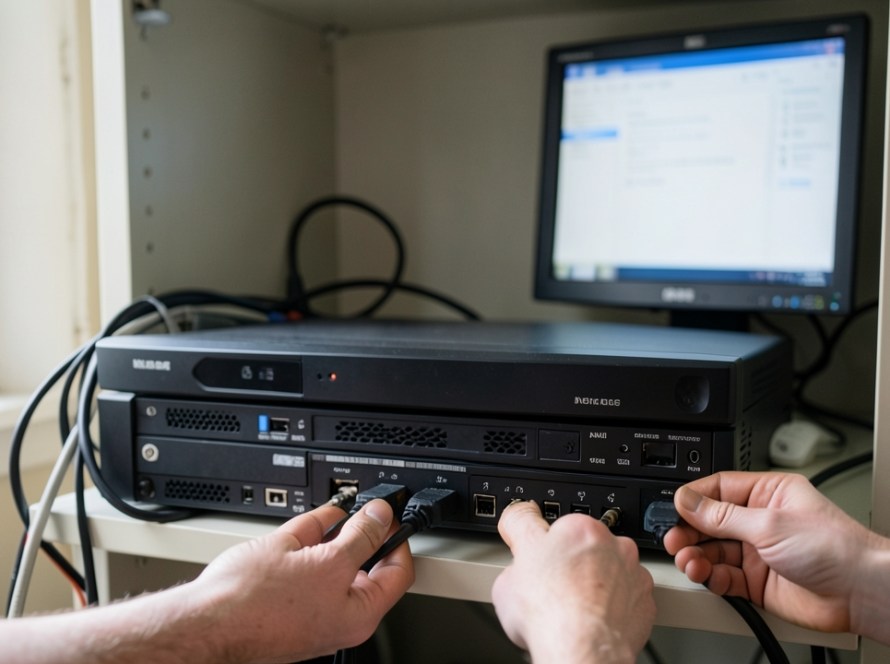
When office staff log into their Windows PCs and find a red ‘X’ over a mapped network drive, daily productivity instantly halts. Attempting to open accounting files, shared documents, or project backups stored on a Network Attached Storage (NAS) or local server often results in long File Explorer delays or messages stating that the network path was not found.
In small business and home office networks, recurring mapped drive disconnections rarely mean that the storage server itself has crashed. Instead, these drops are usually caused by Windows power management settings, SMB session idle limits, network timing during system startup, or outdated saved credentials. Following a systematic diagnostic path helps restore stable, permanent access to shared folders across your network.
Common Symptoms of Network Drive Disconnections
Network drive stability problems manifest in a few distinct ways depending on the underlying network configuration:
- Red ‘X’ icon on drive letters: File Explorer displays a red visual warning over mapped drive letters upon logging into Windows.
- Explorer freezing on launch: Opening File Explorer causes the green progress bar to load slowly while Windows searches for offline network paths.
- ‘An error occurred while reconnecting’ popup: A notification appears in the system tray immediately after booting up the computer.
- Intermittent file save failures: Applications like Microsoft Excel or accounting software throw network loss errors after leaving a file open during a lunch break.
1. Disable Network Adapter Power Savings
Windows operating systems frequently turn off power to network hardware when idle to reduce power consumption. If your Ethernet network card enters a low-power state, the Server Message Block (SMB) session between your PC and the NAS drops. When you attempt to open a shared file, the network interface takes several seconds to wake up, causing Windows to mark the drive as disconnected.
To prevent Windows from cutting power to your network adapter:
- Right-click the Start menu and select Device Manager.
- Expand the Network adapters section.
- Right-click your main Ethernet or Wi-Fi network interface and choose Properties.
- Navigate to the Power Management tab.
- Uncheck Allow the computer to turn off this device to save power.
- Click OK and restart the PC to apply the change.
2. Adjust the SMB Idle Session Timeout
Windows file sharing relies on the SMB protocol to maintain active file sessions between workstations and network storage. By default, Windows operating systems enforce an automatic disconnect threshold when a session remains inactive for 15 minutes. While opening the drive letter usually re-establishes the link, background applications often fail to reconnect automatically.
You can verify and modify the autodisconnect configuration on the host computer or server using the Windows Command Prompt:
Open Command Prompt as an Administrator and check the current timeout configuration. Setting the autodisconnect timer to off prevents Windows from terminating idle network file sessions automatically during the workday.
3. Fix Network Initialization Delays during Windows Startup
Modern Windows installations use Fast Startup to speed up boot times. During startup, Windows restores desktop sessions before the Ethernet network adapter completes its physical link handshake or receives an IP address from the DHCP server. Because the network interface is not fully initialized when Windows attempts to reconnect drive letters, the operating system marks the network drives as unavailable.
Two practical measures prevent this timing conflict:
- Enable network wait policies: In Windows Professional or Enterprise editions, configure Group Policy to force Windows to wait for full network initialization before completing user logon.
- Disable Fast Startup: Configure Windows Power Options to perform a complete system initialization on boot, allowing network controllers to establish link speed before desktop login.
4. Clear and Update Stale Windows Credentials
When user passwords are changed on a local server or NAS, Windows Credential Manager may continue attempting to authenticate mapped drives using cached, outdated login details. This causes authentication retries to fail silently in the background.
To clear saved network credentials:
- Open the Start menu and search for Credential Manager.
- Select Windows Credentials.
- Locate the IP address or hostname matching your server or NAS in the list.
- Expand the entry and click Remove.
- Open File Explorer, manually reconnect to the network share, and check Remember my credentials when prompted.
5. Map Network Drives Using Static IP Addresses
Mapping shared folders using a NetBIOS network name (such as target-nas/shared-folder) depends heavily on local router DNS and name resolution services. If local router host discovery fails or drops packets, Windows cannot translate the device name to a physical IP address.
For optimal reliability, assign a static IP address or permanent DHCP reservation to your server or NAS. Re-map network drive letters directly to the fixed local IP address rather than the device name. Communicating directly via IP bypasses local host name resolution entirely, ensuring faster and more reliable connections upon system startup.
Frequently Asked Questions
Why does my mapped network drive show a red X even though I can open it?
This occurs when Windows checks mapped network locations during desktop login before the network adapter finishes establishing a connection. Although the drive icon shows a red X, clicking the folder forces Windows to refresh the link and restore access over the now-active network connection.
Is a wired Ethernet connection required for mapped network drives?
While mapped network drives function over Wi-Fi, wireless connections introduce variable latency, signal drops, and power saving disruptions. For business environments handling large files or shared databases, wired Gigabit Ethernet connections provide the persistence required to keep SMB file sessions active without dropping.
Should I map network drives using drive letters or UNC path shortcuts?
Drive letters (such as Z:) are useful for legacy software that requires a mapped path. However, creating direct desktop shortcuts using Universal Naming Convention (UNC) paths (specifying the exact IP address and share name) often avoids drive letter reconnection timeouts entirely in modern Windows environments.
What if only one computer in the office keeps losing network drives?
If only a single PC loses connection while other network users remain connected, the issue is isolated to that specific workstation. Focus troubleshooting on that computer’s network cable, Ethernet port settings, network adapter power savings, and local Windows credentials.
Practical IT Support in Zuid-Holland
Resolving persistent network storage drops, configuring reliable NAS shares, and optimizing local office cabling ensures your business operates without recurring daily disruptions. KucuTech provides hands-on networking and practical IT support for homes, shops, offices, and small businesses throughout Zuid-Holland. If your office network suffers from unreliable file access, server disconnections, or Wi-Fi stability issues, professional local support is available to diagnose and permanently resolve the root cause.