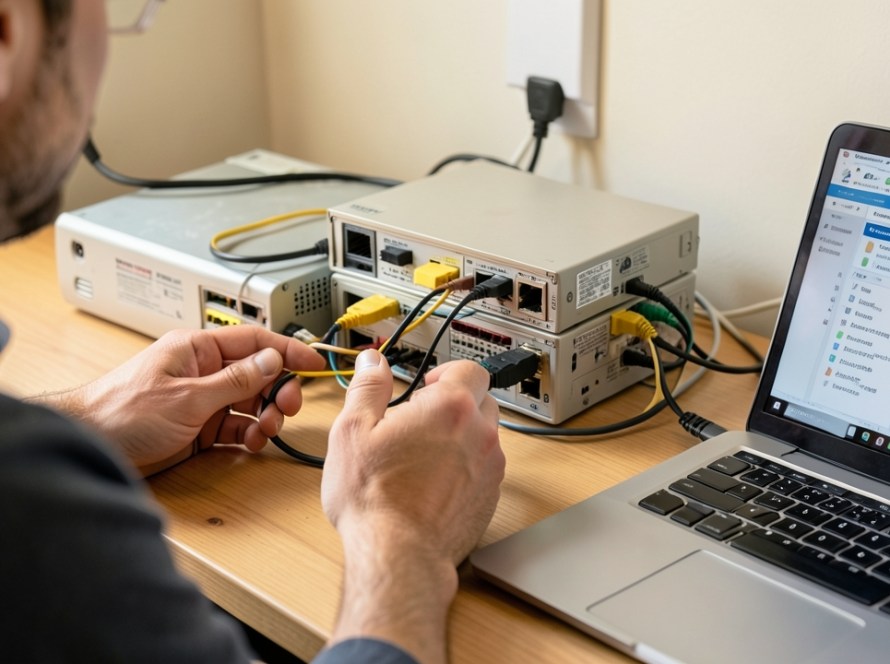
If you pay for a 500 Mbps or 1 Gbps fiber internet subscription but your desktop computer, office workstation, or network storage device caps out at roughly 90 to 94 Mbps during download tests or file transfers, your wired network link is operating at Fast Ethernet (100 Mbps) rather than Gigabit Ethernet (1000 Mbps).
Unlike Wi-Fi signals, which scale up and down continuously depending on distance and obstacles, Ethernet connections establish a fixed physical link speed when plugged in. Modern equipment negotiates link rates at standard hardware tiers: 10 Mbps, 100 Mbps, 1000 Mbps (1 Gbps), or 2.5 Gbps+. If any component along the network path cannot maintain electrical signaling across all required cable pairs, the connection immediately drops to a lower, stable tier—most commonly 100 Mbps.
How to Verify Your Physical Link Speed
Before changing software settings or swapping hardware, confirm the exact link speed reported by your operating system’s network interface controller (NIC).
On a Windows computer:
- Press Windows Key + R, type
ncpa.cpl, and press Enter to open Network Connections. - Double-click your active Ethernet adapter.
- Look at the Speed field listed in the Status window.
If the speed reads 100.0 Mbps instead of 1.0 Gbps (or 1000 Mbps), your network hardware has negotiated a Fast Ethernet baseline. A speed test topping out around 92–95 Mbps confirms this bottleneck, as physical 100 Mbps Ethernet loses approximately 5% to 8% of total bandwidth to protocol overhead.
Primary Causes of Ethernet Link Speed Downgrades
Gigabit Ethernet relies on specific hardware standards and electrical integrity to maintain 1000 Mbps throughput. When auto-negotiation fails, one of four common issues is usually responsible.
1. Broken or Damaged Cable Conductors
Fast Ethernet (100 Mbps) requires only four physical copper wires (two twisted pairs using pins 1, 2, 3, and 6 in an RJ45 connector) to transmit and receive data. Gigabit Ethernet (1000 Mbps) strictly requires all eight wires (four twisted pairs) working simultaneously.
If a single wire inside an Ethernet patch cable is broken, bent, or poorly crimped—specifically on pins 4, 5, 7, or 8—the link cannot establish Gigabit speeds. The network interfaces will automatically fall back to 100 Mbps to prevent complete packet loss.
2. Outlet, Patch Panel, or Wall Socket Faults
In office and home network setups with structured cabling, patch cables connect to wall keystones, which run through wall conduits to a central patch panel. If a single conductor was improperly punched down into the back of a keystone jack, or if solid-core wall cables have been bent beyond their minimum bend radius, the high-frequency signaling required for Gigabit speeds will fail, triggering a fallback to 100 Mbps.
3. Router or Switch Energy-Saving Modes
Some network routers and unmanaged switches feature eco-friendly power management modes. For example, several router models sold in the Netherlands (such as certain AVM FRITZ!Box units) feature individual port settings that toggle between ‘Green Mode’ (limited to 100 Mbps to conserve minor amounts of power) and ‘Power Mode’ (1 Gbps). If a port is accidentally set to eco mode, the device plugged into it will never negotiate above 100 Mbps.
4. Misconfigured Adapter Drivers or Duplex Settings
Network adapter drivers feature an advanced setting called Speed & Duplex. By default, this option is configured to Auto Negotiation. If this setting was manually forced to 100 Mbps Full Duplex during prior troubleshooting, the network card will refuse to establish a Gigabit link regardless of the connected cable quality.
Diagnostic Steps to Restore Gigabit Speeds
Follow these safe troubleshooting steps in order to isolate where the physical bottleneck is occurring.
Step 1: Inspect the Network Adapter Properties
Ensure your operating system is allowing the network hardware to negotiate freely:
- Open Device Manager on your computer.
- Expand the Network adapters section and double-click your Gigabit Ethernet adapter.
- Navigate to the Advanced tab and select Speed & Duplex.
- Ensure the value is set to Auto Negotiation.
- Click OK and re-check your connection status.
Warning: Avoid manually setting Speed & Duplex to ‘1.0 Gbps Full Duplex’. The IEEE 802.3ab standard requires auto-negotiation to establish a proper Gigabit link. Forcing speed settings often causes the link to fail entirely or default back to half-duplex modes.
Step 2: Test with a Direct Patch Cable
Bypass all wall sockets, patch panels, powerline adapters, and multi-port desktop adapters. Connect your computer directly to a known Gigabit LAN port on your main router using a pre-fabricated, factory-tested Cat5e or Cat6 patch cable.
If the link speed immediately changes to 1.0 Gbps in Windows, your network interface and router port are working correctly. The issue lies within the wall cabling, keystone sockets, or patch lead you bypassed.
Step 3: Inspect Port Pins and Hardware Ratings
Examine the physical RJ45 port on both the computer and the switch or router using a flashlight:
- Look for bent, recessed, or oxidized copper pins inside the port.
- Verify that any intermediate hardware, such as an desktop Ethernet switch or USB-C dongle, explicitly supports 10/100/1000 Mbps (Gigabit) and is not an older 10/100 Fast Ethernet hub or switch.
- Check your router settings web interface to ensure the specific LAN port is set to Gigabit or Power Mode rather than Eco/Green Mode.
Step 4: Verify Wall Cable Integrity
If direct router connections work but wall outlets cap your speed at 100 Mbps, the internal wiring requires physical testing. A basic wire mapper (RJ45 cable tester) can be plugged into both ends of the run to verify that all eight conductors maintain continuity from pin 1 through pin 8. Missing lights on pins 4, 5, 7, or 8 indicate an incomplete punch-down or severed wire inside the wall box.
Frequently Asked Questions
Can a Cat5e cable handle 1000 Mbps (Gigabit) speeds?
Yes. Category 5e (Cat5e) cabling fully supports 1 Gbps speeds up to 100 meters, provided all eight conductors inside the cable are intact and properly terminated. Older Category 5 (Cat5) cables or poorly terminated Cat5e leads may drop down to 100 Mbps.
Why does my speed test show exactly 94 Mbps on a 1 Gbps fiber connection?
A speed test result lingering between 90 Mbps and 94 Mbps is a classic symptom of a 100 Mbps physical link limit. The total bandwidth of Fast Ethernet is 100 Mbps, but network header headers and TCP/IP protocol overhead reduce usable data throughput to approximately 94 Mbps.
Can a USB-C Ethernet adapter cause a 100 Mbps lock?
Yes. Many inexpensive USB Ethernet dongles only support Fast Ethernet (100 Mbps max). Furthermore, plugging a true Gigabit USB adapter into an older USB 2.0 port or an unpowered USB hub can restrict data transfer capabilities, resulting in degraded throughput or link negotiation failures.
Does dirty or damaged Ethernet wiring affect ping or latency?
If the physical connection negotiates a stable 100 Mbps link using four good wires, latency remains normal for local network traffic. However, if cable damage causes intermittent signal corruption, packet loss will occur, causing high latency spikes, buffering, and dropped network sessions.
Professional Network Troubleshooting Support
Restoring gigabit throughput throughout a home office, shop, or commercial workspace often requires systematically tracing cable drops, re-terminating damaged keystone connectors, or reconfiguring managed network hardware. KucuTech provides technical IT support, network cabling diagnostics, router/switch configuration, and CCTV infrastructure setup across Zuid-Holland. If your office network or wired equipment is performing below expected speeds, practical local assistance is available to identify and resolve the bottleneck.