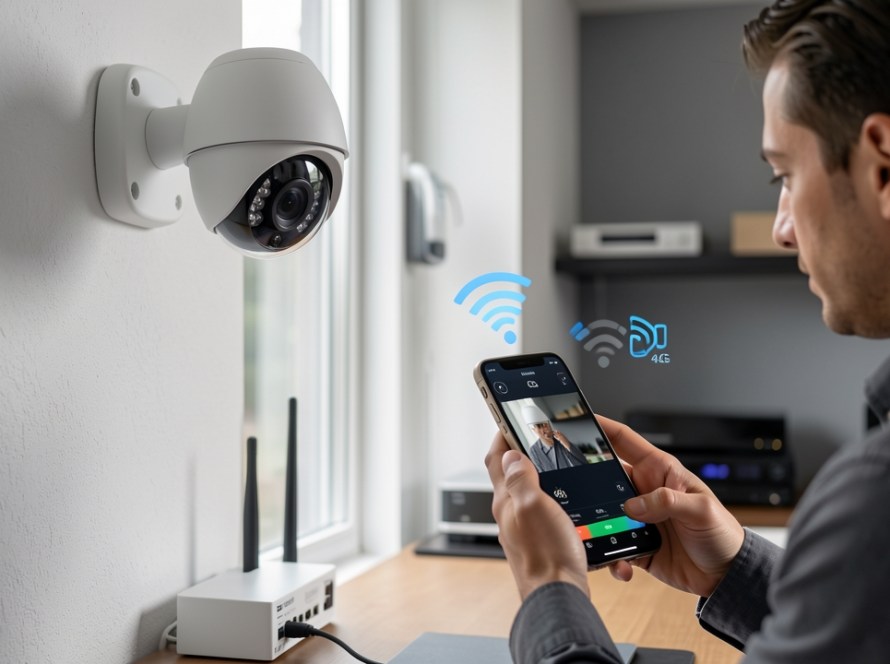
When setting up remote viewing for a security camera system, few error messages are as frustrating as “Device bound to another account” or “The device has been added by another account.” This error occurs when you scan the QR code or enter the serial number of your NVR, DVR, or IP camera into a mobile app like Hik-Connect, DMSS, or EZVIZ, only to find the P2P cloud platform blocking your registration.
This issue frequently appears when taking over an existing CCTV installation in a newly purchased home or office, upgrading smartphones, or when an installer registered the system under their own master account without transferring ownership. Here is a practical technical guide explaining why this happens and the exact steps to unbind the device and restore mobile remote access.
Why CCTV Apps Lock Serial Numbers to Accounts
Modern security recorders rely on Peer-to-Peer (P2P) cloud servers to establish a secure link between your smartphone and recorder without requiring port forwarding or static public IP addresses. When a recorder connects to the cloud platform, its unique serial number is linked to a specific user account on the server.
This binding is an intentional security mechanism. If anyone could scan a QR code on a physical NVR label and instantly view camera feeds, privacy would be compromised. Once a serial number is registered to Account A, the cloud server will reject connection attempts from Account B until Account A releases the device or an authorized unbind process is completed.
Why a Factory Reset Will Not Unbind a Cloud Device
A common misconception is that performing a factory reset on the NVR or camera will clear the cloud binding. A factory reset restores local settings—such as IP addresses, passwords, and recording schedules—to default values. However, the P2P cloud binding resides on the manufacturer’s remote cloud servers, not locally on the recorder hardware.
Resetting the recorder hardware will erase your local configuration, but as soon as the NVR reconnects to the internet, the cloud server still recognizes its serial number as linked to the original registered user account.
Step 1: Unbinding the Device via the Local NVR/DVR Menu
If you have physical access to the recorder and know the local administrator password, the fastest way to release a cloud binding is through the recorder’s monitor interface.
For Hikvision / Hik-Connect Systems:
- Log in to the NVR interface using the local administrator password.
- Navigate to Configuration > Network > Advanced > Platform Access (or Hik-Connect).
- Look for the platform status showing “Online” alongside an Unbind button.
- Click Unbind, enter the NVR admin password when prompted, and confirm.
- Once confirmed, open your mobile app and scan the QR code again to claim the device under your own account.
For Dahua / DMSS Systems:
- Log in to the recorder local menu and go to Main Menu > Network > P2P.
- Verify that the status is “Online”. If an account unbinding option is displayed, enter the local admin password to unbind the device.
- If no unbind button appears in the local interface, use the local network app method described below.
Step 2: Unbinding Using the Mobile App on Local Wi-Fi
Many modern CCTV apps allow you to initiate an unbind request directly from your phone, provided your smartphone is connected to the exact same local Wi-Fi network as the recorder.
- Connect your mobile phone to the Wi-Fi network sharing the same subnet as the NVR (for example, both phone and NVR on 192.168.1.x).
- Open your camera app (such as Hik-Connect or DMSS) and choose to add a new device by scanning the QR code on the NVR or label.
- When the error message “Device bound to another account” appears, tap the Unbind Device button on screen.
- The app will scan the local network to confirm physical proximity. Enter the local NVR admin password to prove administrative ownership.
- Once authenticated, the cloud server severs the link to the previous account, allowing you to pair the NVR with your user account immediately.
Step 3: Handling Unknown Admin Credentials or Missing Owners
If you inherited a security system in a commercial shop, office, or residential property in Zuid-Holland and do not know the previous owner’s account or local admin password, additional verification steps are required:
- Contacting the Original Installer: If the system was installed by a security integrator, they may have registered the device under a technician account. Request that they log into their platform portal to delete or transfer the device serial number to your user account.
- Manufacturer Network Tools: Utilities such as Hikvision’s SADP Tool or Dahua’s ConfigTool allow local network discovery. In some software versions, SADP provides an unbind option when connected via local Ethernet, requiring the device verification code printed on the recorder label.
- Official Support Unbinding: If the previous owner is unreachable, you can submit an unbind request directly to the manufacturer’s official support desk or an authorized distributor. You will typically need to provide a photo of the physical device serial label, proof of property purchase or tenancy, and the network MAC address.
Preventing Future Remote Access Lockouts
To ensure smooth access to your security camera system in the future, follow these practical management rules:
- Use a dedicated business or household email: Register your CCTV app account using a shared owner email address rather than an individual technician’s personal phone number or email.
- Document local admin credentials: Keep a secure record of the NVR admin password and verification code (located on the system label).
- Unbind hardware before handover: If selling a property or decommissioning hardware, unbind the device from your cloud account prior to disconnecting the recorder from the internet.
Frequently Asked Questions
Can I view cameras on multiple phones if the device is bound to one account?
Yes. Once the device is bound to your primary master account, you do not need to register it again on other phones. Use the app’s internal Share function to grant access to family members or employees with specific permissions (live view, playback, or PTZ controls).
Why does the app say “Device offline” during the unbind attempt?
Unbinding requires the recorder to communicate with the manufacturer’s cloud server. Ensure your NVR has a valid IP address, correct DNS server settings (such as 8.8.8.8 or 1.1.1.1), and a active internet gateway before attempting to unbind.
Is port forwarding necessary if P2P cloud binding fails?
Port forwarding is an alternative remote access method that bypasses P2P cloud registration, but it requires a static public IP or DDNS service and opens incoming ports on your network router. For most small businesses and homeowners, resolving the P2P unbinding process is safer and far easier to maintain long term.
Professional CCTV Setup & Support in Zuid-Holland
Resolving cloud registration errors, password lockouts, and network configuration issues on security systems can be frustrating. KucuTech provides practical on-site and remote IT support for homes, offices, and small businesses across Zuid-Holland, including Rotterdam, The Hague, Delft, Leiden, and surrounding areas. Whether you need help transferring an existing security system, configuring remote viewing apps, or troubleshooting NVR network settings, our experienced technicians are available to assist.