When a Network Video Recorder (NVR) displays a “No Disk,” “HDD Error,” or “Uninitialized Drive” message, the recorder immediately stops saving video footage. In many instances, the system continues streaming live camera views to local monitors and smartphone applications, leading owners to assume security monitoring is fully operational until an incident occurs and historical footage is missing.
A hard drive failure or detection issue in a surveillance recorder stems from hardware power insufficiency, internal cable degradation, file system corruption, or physical drive mechanism failure. Identifying the exact cause requires systematic testing to prevent unnecessary component replacements.
Common Symptoms of NVR Drive Detection Issues
Recorders indicate hard drive problems through distinct system alerts and diagnostic indicators. Recognizing these symptoms helps narrow down whether the issue lies in software configuration or physical hardware.
- Audible Continuous Beeping: Many NVRs trigger an internal buzzer alert when storage media becomes unavailable or reports unreadable sectors.
- System Status Message: The local screen interface displays errors such as “No Hard Disk,” “HDD Not Found,” or “Disk Read/Write Error.”
- Storage Status Showing Uninitialized: In the storage management menu, the disk appears with a capacity of 0 MB or states “Uninitialized” instead of “Normal.”
- Gaps in Video Timeline: Playback menus show fragmented recordings or fail to display timeline markers despite continuous recording schedules being active.
Diagnostic Step 1: Check Power Supply Specifications and Health
Power degradation is one of the most frequently overlooked causes when an NVR hard drive is not detected. A surveillance recorder requires adequate amperage to start up its mainboard and simultaneously spin up the magnetic platters of an internal hard drive during boot.
Over time, external power adapters (12V DC power bricks) experience capacitor degradation. A degraded power adapter may provide sufficient voltage to power the NVR processor, network ports, and LEDs, but fail to supply the peak surge current required to spin up the hard drive motor.
How to test power stability:
- Verify that the power supply matches the manufacturer’s original specification (typically 12V 2A for single-drive NVRs, or 12V 3A to 5A for multi-drive systems).
- If the recorder was recently expanded with additional IP cameras or a higher-capacity hard drive, test the unit with an equivalent high-quality 12V power adapter of known output.
- Listen closely to the recorder upon turning on the power switch. If you do not hear a faint mechanical spinning or clicking sound within the first ten seconds, the drive is likely not receiving sufficient electrical current.
Diagnostic Step 2: Inspect Internal SATA Data and Power Cabling
If power delivery to the recorder chassis is adequate, internal connection faults must be investigated. Recorders connect to 3.5-inch hard drives using standard Serial ATA (SATA) data cables and dedicated power leads connected to the mainboard.
Thermal expansion, subtle vibrations, or physical movement during maintenance can cause internal connections to seat improperly.
Physical inspection procedure:
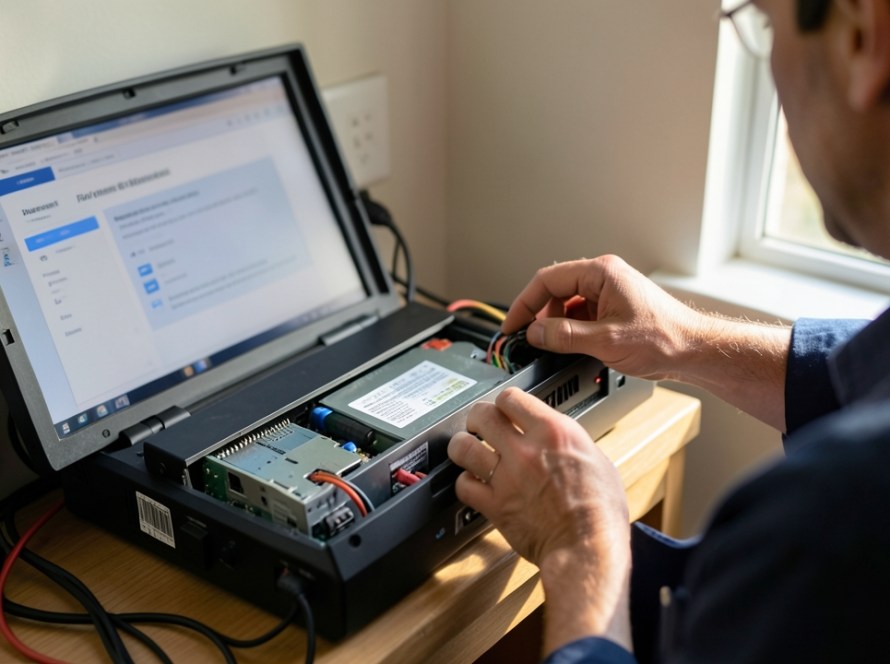
- Disconnect the main power plug from the rear of the NVR before opening the chassis.
- Remove the top housing cover screws and carefully lift the cover.
- Locate the SATA data cable (usually a flat red or black cable) and the SATA power harness connecting the drive to the mainboard.
- Unplug both ends of the SATA data cable and re-seat them firmly. Inspect the plastic connectors for visible cracks or bent pins.
- If spare SATA cables are available, temporarily substitute the data cable to rule out internal wire fractures.
Diagnostic Step 3: Review Storage Management and S.M.A.R.T. Logs
When internal cables are properly seated and the drive motor spins up, log into the NVR management interface using an administrator account to review drive health status within the system software.
Formatting Unrecognized Drives
Newly installed drives, or drives moved from another operating environment, often use incompatible file formats (such as NTFS or FAT32). CCTV recorders require specialized partition layouts (often Linux-based ext4 or proprietary raw write structures) optimized for continuous multi-stream video writing.
Navigate to Storage Settings > HDD Management, select the detected drive, and choose Format or Initialize. This creates the necessary sector structure for continuous video indexing.
Checking S.M.A.R.T. Parameters
Most commercial-grade NVRs include Self-Monitoring, Analysis, and Reporting Technology (S.M.A.R.T.) health monitoring. Access the S.M.A.R.T. details page within the recorder menu and evaluate the following attributes:
- Raw Read Error Rate: High or rapidly rising values indicate mechanical read head issues.
- Reallocated Sectors Count: Values above zero indicate that the hard drive firmware has permanently relocated damaged physical sectors to spare storage areas. This is a definitive sign of drive wear.
- Current Pending Sector Count: Indicates unstable sectors waiting to be remapped. Drives with high pending sector counts frequently disconnect or cause the NVR system interface to freeze.
Diagnostic Step 4: Test the Drive on an External Hardware Dock
To confirm whether the fault resides in the recorder’s internal SATA controller or the hard drive itself, remove the drive and connect it to a secondary system, such as an external USB SATA dock attached to a computer.
- Power on the drive externally and check if it spins up smoothly without metallic clicking sounds (a physical failure known as the “click of death”).
- Run a drive diagnostic utility supplied by the drive manufacturer to perform a full surface scan.
- If the drive passes diagnostic scans on a computer but remains undetected in the recorder, the issue may point to a hardware fault on the NVR mainboard’s SATA controller or power regulation circuit.
Selecting the Correct Replacement Drive for CCTV Recorders
If hardware diagnostics confirm hard drive failure, replacing it with a standard desktop computer hard drive is a common mistake. Standard desktop drives are designed for short burst read/write cycles (typically operating 8 hours a day, 5 days a week) and lack the firmware required for continuous high-throughput video streams.
Surveillance systems write data continuously 24 hours a day, 7 days a week, often across multiple high-definition camera streams simultaneously. Replacement drives must be dedicated surveillance-grade mechanical hard drives (such as Western Digital Purple or Seagate SkyHawk series).
Surveillance drives provide crucial operational advantages:
- Firmware optimized for simultaneous multi-channel video write operations.
- Enhanced protection against rotational vibration in multi-drive recorder chassis.
- Lower power consumption during startup and continuous write cycles, reducing heat buildup within small, fanless NVR enclosures.
- Designed for high write workloads (typically rated up to 180 TB/year or higher).
Frequently Asked Questions
Why does my NVR hard drive make a repeating clicking noise?
A repeating mechanical clicking noise usually indicates that the hard drive read/write head assembly is failing to initialize or calibrate. It can also occur if the power supply adapter cannot deliver enough surge current to spin the drive platters up to operating speed.
Can I use a standard 2.5-inch laptop drive or SSD in my NVR?
While solid-state drives (SSDs) and laptop drives share compatible SATA interfaces, standard consumer SSDs are generally not recommended for primary CCTV recording. The continuous multi-channel write operations of security cameras rapidly exhaust the write endurance (TBW) of consumer memory chips, leading to early drive failure. Dedicated surveillance mechanical drives or enterprise video SSDs should be used instead.
Will formatting my hard drive in the NVR delete all existing video footage?
Yes, formatting or initializing a hard drive permanently erases all existing file indexes and recorded video partitions. If historical footage is needed for evidence, attempt to extract necessary clips or seek professional data recovery before performing a reformat operation.
How long should a surveillance hard drive typically last in an NVR?
Under continuous 24/7 write operations within recommended operating temperatures (typically below 45°C inside the NVR chassis), a high-quality surveillance hard drive generally operates reliably for 3 to 5 years. Regular checking of S.M.A.R.T. health logs helps identify degradation before complete recording loss occurs.
Professional Support for Surveillance Systems
Systematic troubleshooting of CCTV recorder storage prevents unexpected gaps in security coverage. If your recorder continues to report hard drive detection errors after verifying cables and power supplies, physical mainboard failure or system firmware corruption may require professional attention.
KucuTech provides expert CCTV system diagnostics, hard drive replacement, remote viewing configuration, and network support for residential and commercial systems throughout Zuid-Holland. Contact KucuTech to restore reliable recording operation to your security infrastructure.