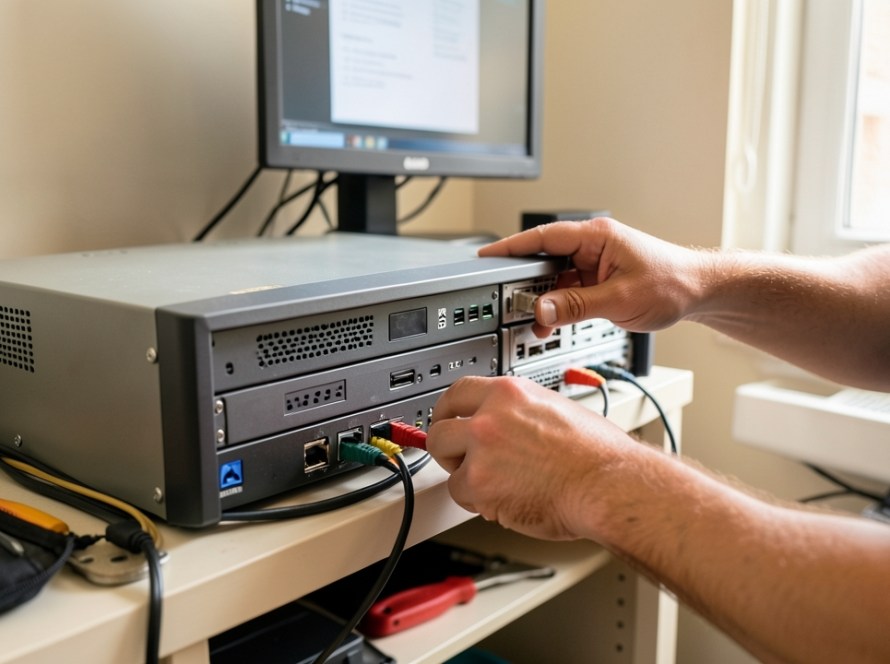
Placing IP cameras directly on your primary local network is one of the most common design mistakes in home and business security installations. While plugging cameras into the same router or switch as your office computers, point-of-sale terminals, and personal laptops works initially, it creates severe long-term network performance and security vulnerabilities. Security cameras generate continuous high-volume data streams that can clog network switches, while outdoor cable runs present a physical gateway for intruders to access your private network.
The standard technical solution for this issue is VLAN segmentation. By isolating your security cameras on a Virtual Local Area Network (VLAN), you isolate video traffic, restrict unauthorized access, and protect the rest of your local network without compromising remote viewing or recording reliability.
What Is a VLAN and Why Security Cameras Need One
A Virtual Local Area Network (VLAN) is a logical sub-network that groups together a subset of network devices regardless of their physical location. Even when your cameras share the same physical Ethernet switch with your desktop computers and network printers, a VLAN forces the network switch to treat the camera traffic as if it were running on an entirely separate physical network.
In a typical unsegmented network, every connected device shares the same broadcast domain. As you add multi-megapixel IP cameras streaming constant video at 25 or 30 frames per second, network switches are forced to process massive amounts of local traffic. Implementing VLAN segmentation isolates these bandwidth-heavy streams from the rest of your local network.
The Risks of an Unsegmented CCTV Network
Running IP cameras on a flat, single-subnet network exposes your home or business to two distinct problems:
1. Network Congestion and Performance Degradation
Unlike laptops or smart TVs that consume network bandwidth in intermittent bursts, IP security cameras stream continuously. Four 4K cameras utilizing H.264 video compression can easily broadcast 20 to 40 Mbps of uninterrupted traffic across your network switches. When combined with broadcast traffic from other network devices, unmanaged camera streams cause packet loss, elevated network latency (ping), dropped video frames, and noticeably slow loading times on office computers.
2. Physical Security Breaches via Outdoor Cables
Outdoor IP cameras require Ethernet cables routed outside your building structure. If an outdoor camera is installed in an accessible area—such as near a parking lot or rear entrance—an intruder could disconnect the RJ45 connector from the camera, plug a laptop into the bare Ethernet cable, and immediately gain full physical access to your internal local network. On an unsegmented network, that exposed wire provides direct access to shared network drives, local servers, office printers, and sensitive computer workstations.
Hardware Requirements for IP Camera VLAN Segmentation
To successfully isolate your IP camera network, your network architecture requires three components:
- 802.1Q Managed or Smart-Managed PoE Switch: Unmanaged switches cannot process VLAN tags. A managed switch allows you to assign specific switch ports to designated VLAN IDs.
- VLAN-Aware Router or Firewall: Your main network router or firewall must support multi-SSID/VLAN routing (802.1Q standards) to manage traffic between the camera VLAN and your primary local network.
- NVR with Dual Network Interfaces or VLAN Support (Optional): Many commercial Network Video Recorders feature built-in PoE switches that handle network isolation natively, or dual LAN ports that allow physical network separation.
Step-by-Step Architecture for an Isolated Camera VLAN
Setting up an isolated network for your security system involves four fundamental steps:
Step 1: Define the Network Subnets and VLAN IDs
Establish a designated VLAN tag number and IP address range for your surveillance equipment. For example:
- Primary Network (VLAN 1): Subnet
192.168.1.0/24(Office PCs, Wi-Fi, Printers) - Security Camera Network (VLAN 20): Subnet
192.168.20.0/24(IP Cameras, NVR)
Step 2: Configure Switch Ports (Access vs. Trunk Ports)
On your managed PoE switch, designate the ports where your cameras plug in as Access Ports assigned exclusively to VLAN 20. An Access Port carries traffic for only one specific VLAN and strips the 802.1Q tag before handing data to the camera.
Designate the connection between your managed switch and your router/firewall as a Trunk Port. A Trunk Port carries tagged traffic for multiple VLANs simultaneously, allowing your router to direct network traffic appropriately.
Step 3: Implement Firewall and Inter-VLAN Routing Rules
Isolation is only as effective as your firewall rules. To prevent security breaches through exposed camera cables, configure your firewall with strict inter-VLAN access control rules:
- Allow Admin Access: Allow connections originating from your administrative PC (VLAN 1) to reach the NVR or camera IP addresses on VLAN 20 for management purposes.
- Block Camera Initiated Traffic: Block all traffic originating from VLAN 20 toward VLAN 1. If an unauthorized device plugs into an outdoor camera cable on VLAN 20, the firewall blocks it from reaching your private computers or servers.
- Restrict Internet Access: Block IP cameras from establishing direct outbound connections to the internet. Allowing cameras direct internet access exposes them to automated botnet scanning and firmware vulnerabilities.
Step 4: Route Remote Viewing Safely
If you need remote viewing on your smartphone or off-site computer, allow only the NVR (or a dedicated VPN gateway) outbound internet access or cloud P2P relay connectivity. The individual IP cameras should remain strictly local to VLAN 20, communicating exclusively with the NVR.
Common Pitfalls When Setting Up CCTV VLANs
When configuring network segmentation for video surveillance systems, watch out for these frequent mistakes:
- Leaving Default IP Addresses on Cameras: Always assign static IP addresses or specific DHCP reservations within the camera subnet. Do not rely on default camera fallback IPs (such as 192.168.1.64).
- Blocking Necessary NVR Communication: If your NVR sits on VLAN 1 while cameras sit on VLAN 20, ensure port routing permits ONVIF (typically port 80 or 8899) and media streaming ports (typically RTSP port 554) through the firewall.
- Ignoring Switch Management Interfaces: Ensure the management page of your managed switch is only accessible from your primary secure network (VLAN 1), not from the camera VLAN.
Frequently Asked Questions
Do I need a VLAN if my NVR has built-in PoE ports?
If your NVR features built-in PoE ports on an isolated internal switch network (often using an internal IP scheme like 10.1.1.X or 172.16.X.X), the NVR already provides physical network segmentation. The cameras connected directly to the back of the recorder cannot see or interact with your office network.
Will isolating cameras on a VLAN prevent me from viewing them on my phone?
No. As long as your Network Video Recorder (NVR) is configured to communicate with your mobile app—or you access your network through a secure VPN connection—you can view live camera feeds normally while keeping the individual cameras completely blocked from the internet.
Can I isolate wireless (Wi-Fi) security cameras on a VLAN?
Yes. If your wireless access points support multi-SSID mapping, you can create a dedicated security SSID mapped directly to your camera VLAN 20. Wireless cameras connecting to that SSID will be isolated from your main Wi-Fi network.
Should the NVR be on the camera VLAN or the main office VLAN?
In most small to mid-sized setups, placing the NVR on the camera VLAN (or using an NVR with dual network interface cards) is best practice. If the NVR has a single network port, locate it on the camera VLAN and use router firewall rules to permit access from authorized office workstations.
Professional Network & Security Assistance in Zuid-Holland
Configuring managed switches, inter-VLAN firewall rules, and IP camera routing requires careful network planning to avoid accidental lockouts or dropped video recordings. KucuTech provides on-site IT support, network switch configuration, and professional CCTV services for businesses, retail shops, and residential clients across Zuid-Holland, including Rotterdam, The Hague, Delft, and surrounding regions. If your security system is causing network lag or requires expert security isolation, contact KucuTech for practical network diagnostics, or request a CCTV or IT support appointment.